Sunday, December 18, 2016

Leadership in your classroom - Try a bookstudy

Happy Holidays from the Tech Guys at Region 9

Here is a great fireside holiday activity to get prepared for coming back to school in the New Year.

Ask yourself these questions:
  1. Do my students have easy access to technology in my classroom?
  2. Would I like to engage my students with some reflective activity after they read?
  3. Would I like for my students to learn about peer review?
If the answer to any of these questions are yes.  You should try using a blog to fill the void with a blog.  You can access blogger on your school email account.

Here is an outline to build and create your blog:
  • Instructions to create a Blog
    • Rubik's cube
    • Choose more - possibly “even more from Google”
      • Find blogger and select
    • Then select New Blog
      • Give it a Title - use the following format
        • BD Class Blog    (initials and Class Blog)
      • Give it an address (URL) - use the same as the Name-no spaces allowed
        • Example: BDClassBlog
          • Blog will become available at the address listed
      • Select Simple for the Theme
      • Click on “Create Blog”
      • A pop-up screen will appear. Click no thanks! You don’t have a need to purchase an actual domain name
    • Do Not Skip This Step!
      • From the initial blog page, you will see an orange pencil. To the right of it, click the drop down screen. Select settings (the last entry)
      • On the left hand side of the screen you will see a wrench that says settings. Below that, click Posts, comments and sharing.
      • In the center of the screen, you will see “Who can comment.”
        • Select user with Google Accounts (this would allow you to invite other students from different schools if you wish)
        • Under Comment moderation be sure to select ALWAYS--enter your email address. This makes sure that you have viewed every comment prior to the class seeing it.
    • Click on New Post (upper left)

    • Give your post a title: Book Study Chapter 1
      • Now begin your post: Example In The Grapes of Wrath Chapter 1…..
        • Format is similar to Google Docs and Microsoft Word (you can add videos, pictures, select fonts, links, etc.)
    • When your post is done, click Publish
      • Options are: save, preview, discuss
    Have a great Holiday and Happy New Year:   Bryan, Stacy, Robert, Thomas, Patrick

Friday, June 24, 2016

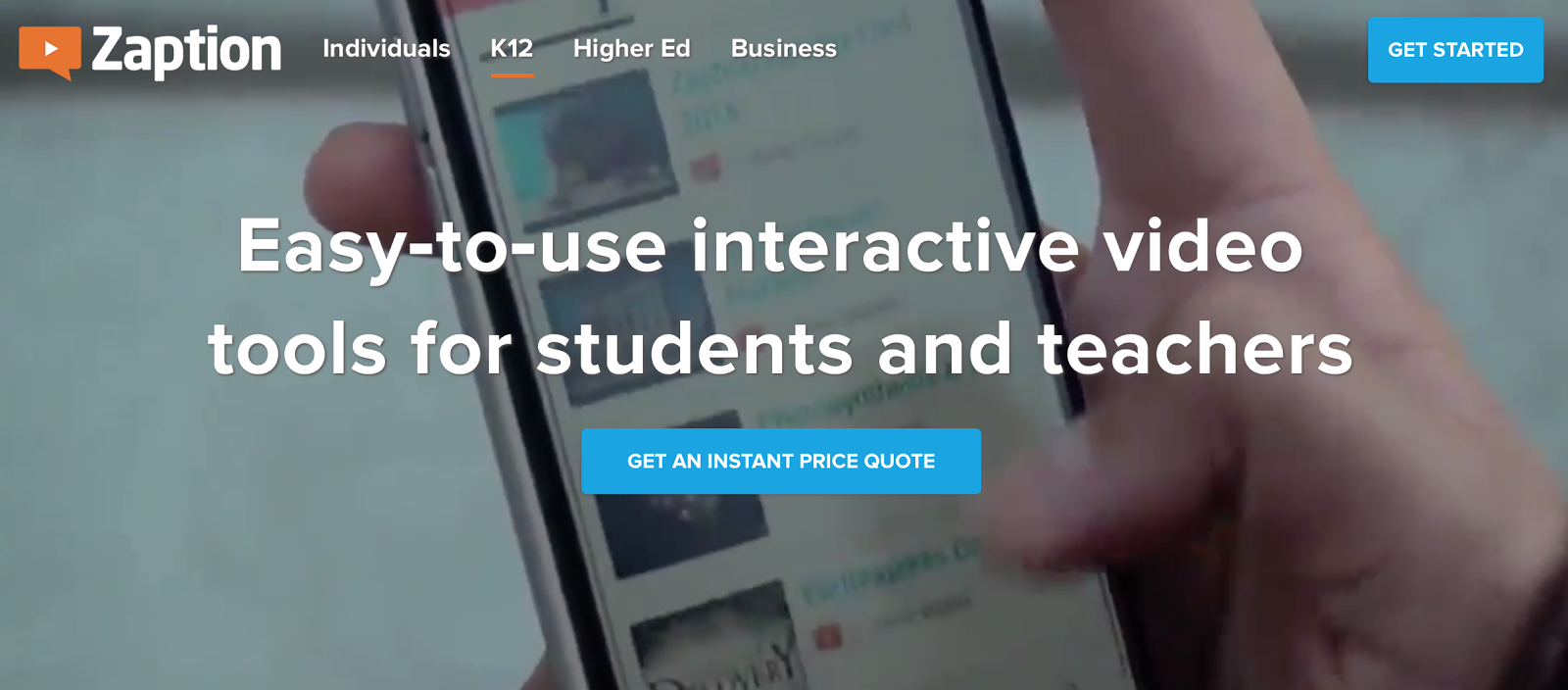
Google Quiz & Zaption - Turn Passive Videos into Interactive Lessons

Google Forms now supports quiz mode and grading within the form.  We have had Flubaroo for this task, but not Google Forms supports grading Multiple Choice style questions with no add ons.. if you want to use short answer or paragraph you will still want to use Flubaroo, but this is quick and easy for multiple choice.  Create your questions - select the gear box settings and choose quiz.  On each question you click the 3 dots on the bottom right and set the correct answer and scoring options.  You're done, now just give the assessment and it will grade it right away.
Deeper instructions here:  Quiz how to grade

Teach with Pizazz!
Turn ordinary video lessons from a "watch and learn" to a watch / interact / engage / learn.
Try a free account at this new exciting tool.  Easy to use and easy to deploy.
Set up your free account now:  https://www.zaption.com/k12


Tip for sharing google docs:  You can set a time to live on a document you share with another user.  • New feature of Sharing in google docs.   click on share - click on advanced - hover over the user name that you want to share with and a stopwatch will appear - set the expiration date on the share of that document to that individual user.

Enjoy the site and the tip!

Tuesday, June 21, 2016

Convert YouTube to MP3!!!


Convert YouTube to MP3
Have you ever wanted to save a YouTube music video for future use? Well now you can! All you have to do is go to the website that follows (http://www.youtube-mp3.org/) and copy the URL from the YouTube video you would like to convert and paste it into the conversion box as seen below, then click "Convert Video" and you have just converted a YouTube format video to MP3 format.


Copy URL 


Paste URL in box shown above

After the video is converted you will be given the option to download the MP3 to your computer and you are on your way to have access to almost any song that YouTube has to offer.

The couple exceptions are that some videos are copyright protected and will not convert, and the video cannot be longer than 20 minuets.

Hope  you all can put this to use and enjoy having access to all the songs you want!!!


Friday, June 3, 2016

Rocketbook Wave


Have you ever wished that someone would invent a cloud connected microwavable notebook?  Me too!  Who wouldn’t want one of these!


Actually, it’s not as crazy as it sounds.  


Several months ago, I heard about the Rocketbook Wave from a family member that had seen or heard about it while working on a project for Google -- lots of nerds in my family.  He explained that with this ordinary looking paper notebook, you write or draw in it as usual, and then with the associated app, you can upload scans of the pages to the cloud. Okay, that sounds pretty cool. So what.  Then he explained that when the notebook is full, you stick it in the microwave with a cup of water, and everything is erased! You can use the notebook over and over again!  What!  I was intrigued.  


I immediately went online and found the notebook on Kickstarter.  I ordered a couple and finally received them last week.  They work just as promised.  Watch this following video to see the Rocketbook Wave in action.


Saturday, May 7, 2016

Google Cardboard

Google Cardboard is a somewhat recent and highly addictive platform developed by Google.  It is basically a Virtual Reality (VR) platform that uses your smartphone and a simple VR viewer that is made of cardboard.  These cardboard viewers were designed to keep the cost down and to encourage software developers to create new VR applications for the platform.

Image result for what is google cardboard


What can you do with Google Cardboard?

Here’s a few things that you can do with Google Cardboard:

  • Take VR photos that allow you to look around and experience 3D panoramic photos with depth and sound
  • Watch 360° Videos on YouTube
  • Take virtual expeditions and field trips to places around the world
  • Play interactive 3D games

And the list grows bigger each days as new apps are developed and released.

So, if you have a SmartPhone and an extra $15 to spend on the viewer, give it try.  It’s really a lot of fun.


Monday, May 2, 2016

Summer Projects you can give your students a challenge with.

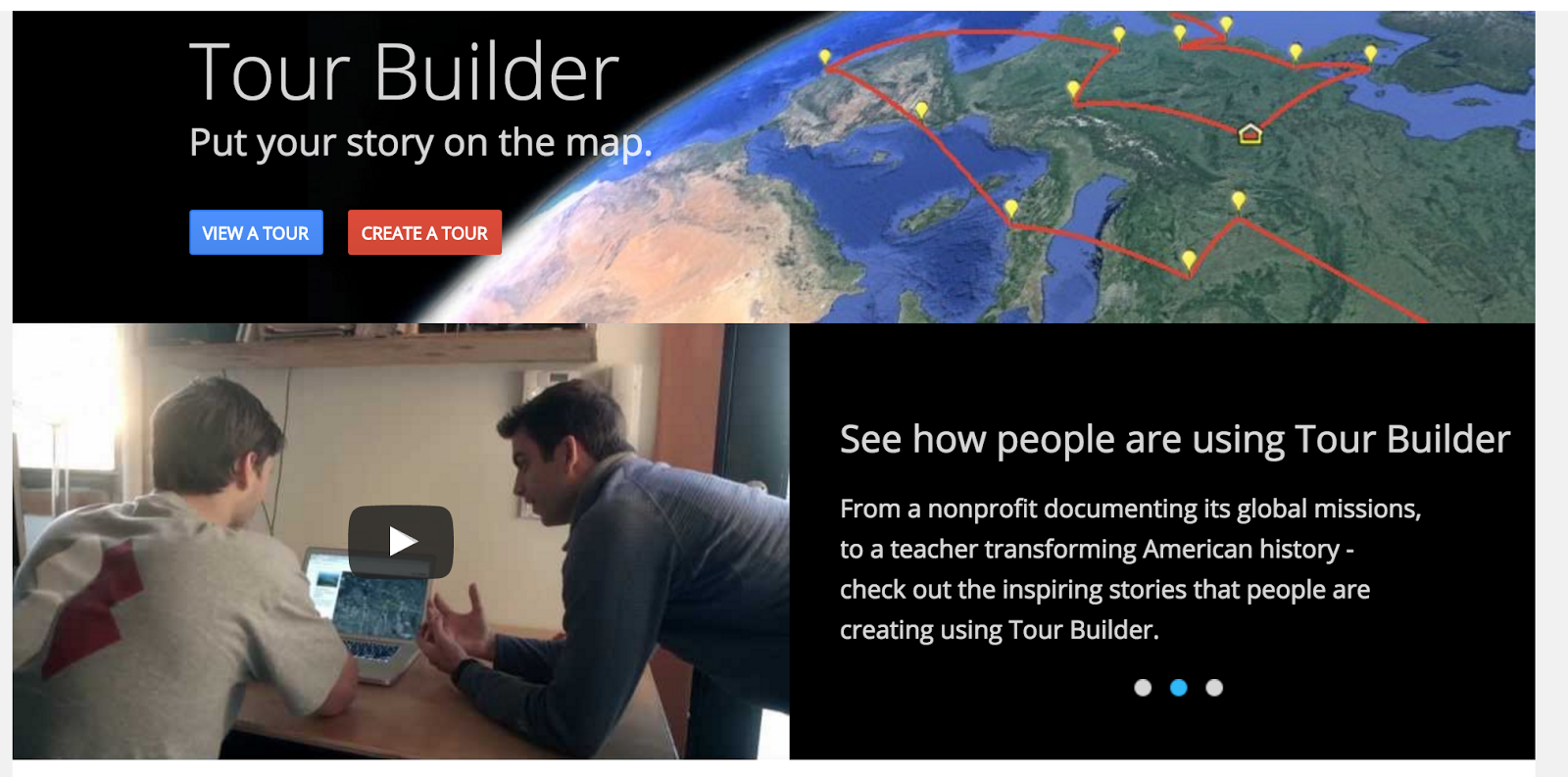
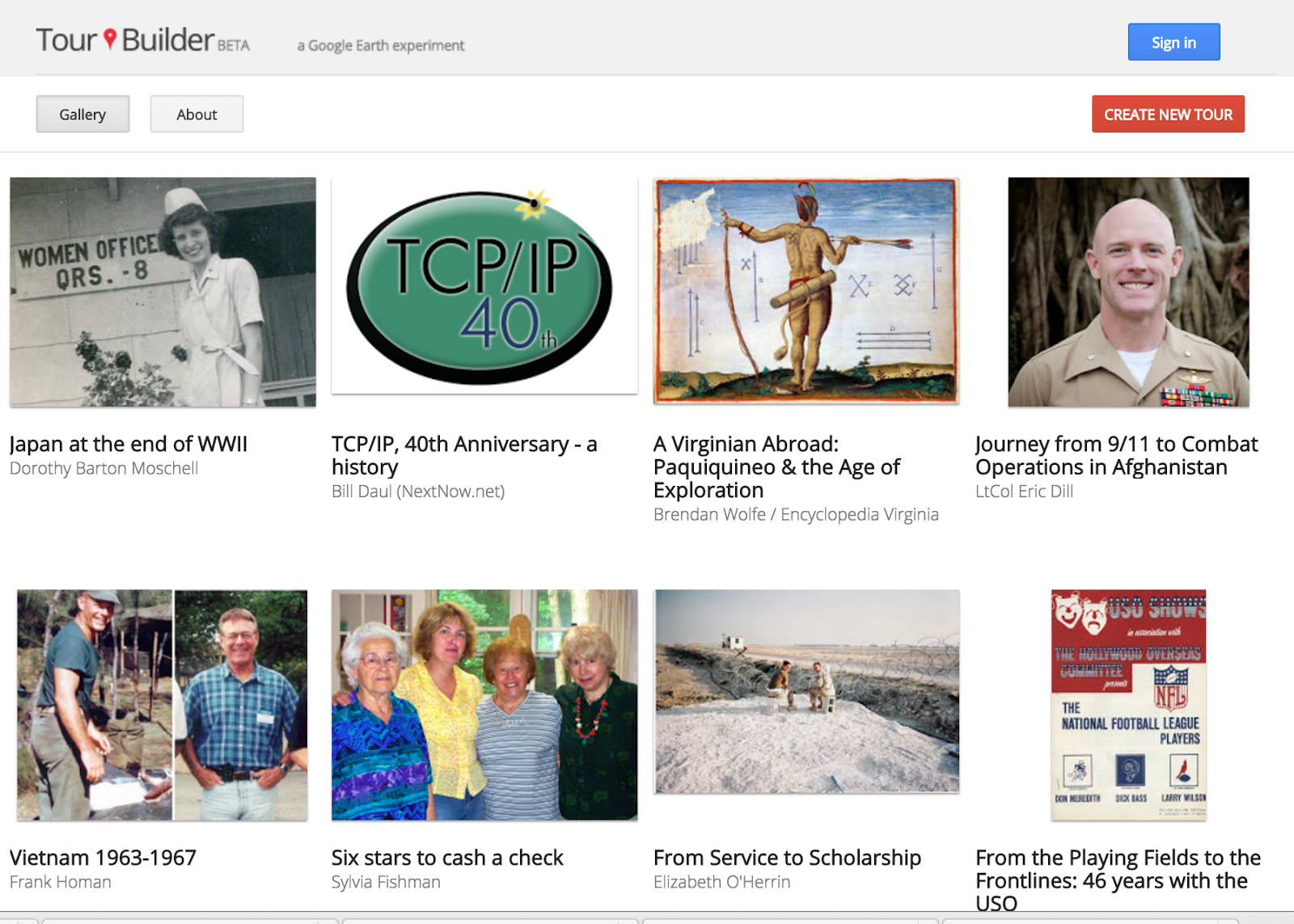
Tour Builder:
This is a great website to have your students use for documenting and creating a project.  What a great summer project to record their summer trip.


Go to this address and start your account, explore the options and get started today!
https://tourbuilder.withgoogle.com/

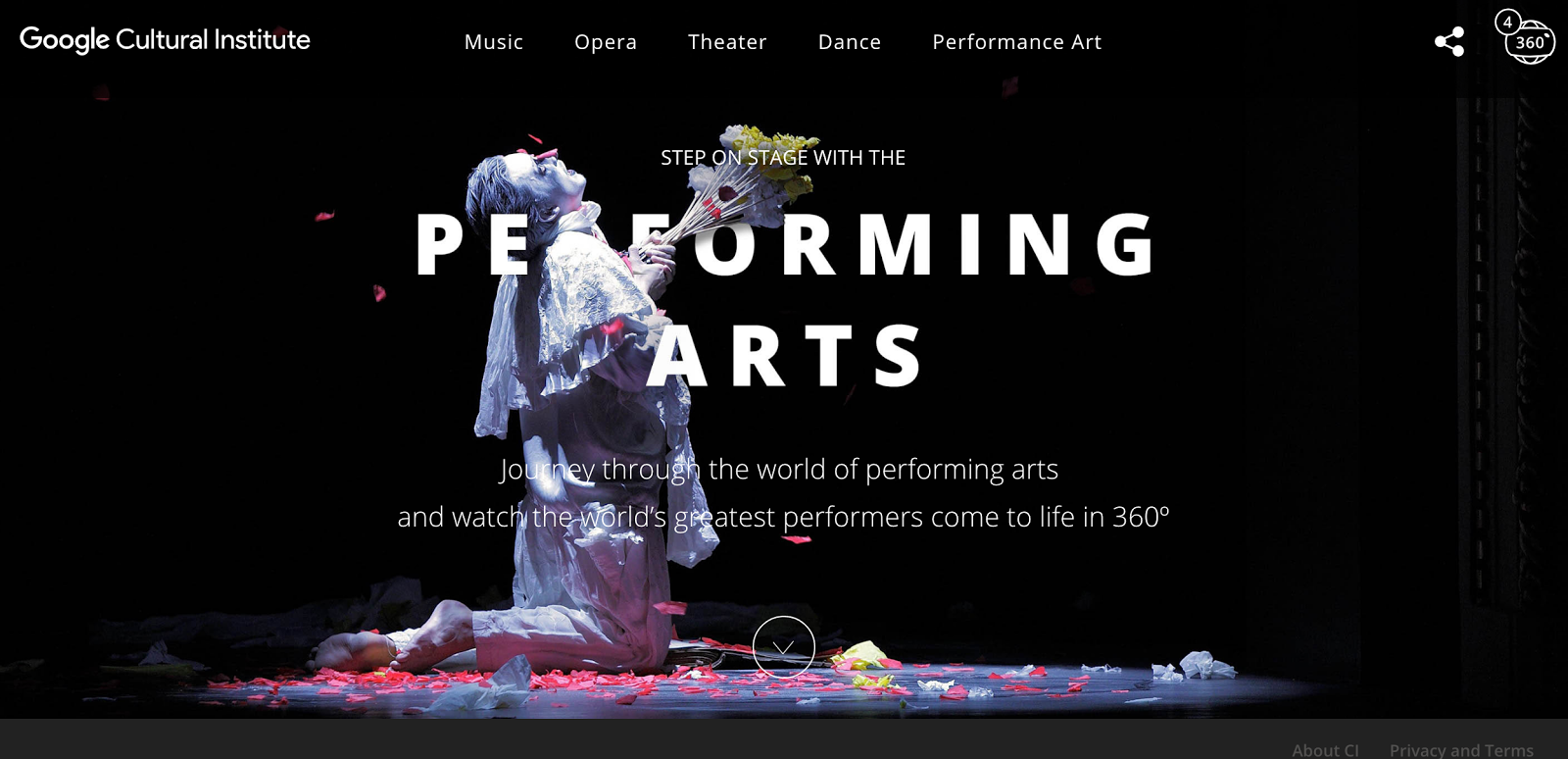
Do you love the Performing Arts?  Here is your opportunity to experience them in a way never before possible.  Strategically placed 360º cameras stationed on the stage capture the Performing Arts for your enjoyment.
Share this with your students.  You could easily develop a writing assignment by having your students watch one of these videos and share their thoughts.

Monday, April 25, 2016

EasyTech Tips


Tech Tips

Have you ever wondered how those silly toolbars and other unwanted apps get on your PC?

Something as simple as unchecking or checking a box can prevent those toolbar's from installing on your computer!

After an update occurs, Java will offer some promotional toolbar's or software. All you need to do is just make sure you are not agreeing to install more content. 

After Java updates, the prompt you will see looks like this image below


all you need to do is just check the box that says "do not update browser settings" and you have just avoided installing a potentially unwanted program!

Hope this is useful for all you teachers and staff members trying to keep your PC as clean as possible!

Saturday, April 16, 2016

Tech Alert !!!

Another Wrinkle for School Tech Departments

Gang the latest and greatest have shifted gears. What do I mean ? Well it used to be we had firewall bypass links that students would access via web pages chock full of proxy site links. Now web browser add ins are doing the same functionality. Bypassing our firewalls and allowing ever more savvy kids to cruise the net to their hearts desire. Keep eyes out for things like this. An example is below. They can be blocked but you must know what to look for. 


This one is called GOM VPN. It is an add on or extension for Chrome and Firefox. It will allow complete access to any site without specifically being blocked. Here are some quotes from publications about it. 
"A technologically illiterate solution", Forbes
"Three clicks is all it takes to install", TechInAsia
"The extension will allow users to go freely about the internet without their internet provider pestering them with imposed restrictions", Pocket-Lint
"UK's porn filters foiled by Chrome extension", Wired


Friday, April 8, 2016

Vive la Chromebook!


chromebook.jpg


First introduced in 2011, the Chromebook is taking the industry by storm.  With over 50% market share in the EdTech market, it looks like they’re here to stay for the foreseeable future, or at least until Google goes out of business -- like that’s ever gonna happen.


So, what is a Chromebook?


A Chromebook is simply a laptop running Chrome OS as it’s operating system. Chrome OS is an operating system that was designed by Google and based upon the Linux kernal.


From the viewpoint of a School Administrator or Technology Director:


  • Chromebooks have a 61% lower total cost of ownership.
  • Chromebooks take 93% less time to deploy.
  • Chromebooks take 68% less labor to support.


From the viewpoint of the students, teachers and others that use them everyday:


  • Chromebooks start at $149
  • Chromebooks take less than 10 seconds to startup.  Dang! That’s fast!
  • Chromebook batteries last 7+ hours between charges.
  • Chromebooks have multiple layers of security and are safe from malware and viruses without any additional security software to slow things down.
  • Chromebooks update themselves automatically so you don’t have to.
  • Chromebooks automatically store all of your files in the cloud (a.k.a. Google Drive), so your all of your work is always backed up.


Watch this video for a good overview of the advantages of Chromebooks for business and education.


What can you do with a Chromebook?


Now you know that Chromebooks are inexpensive, they go all day on a single battery charge, and they don’t get viruses.  So what can you do with a Chromebook?  The answer is a freakin’ ton!


For schools, there is Google Apps for Education.  This is a suite of Google software that includes Gmail, Classroom, Docs, Sheets, Slides, Drive, Calendar, Sites, Hangouts, and more.  For more information, visit https://www.google.com/edu/products/productivity-tools/ , or watch this video to see how Chromebooks can benefit your school.


For businesses, many of the same apps mentioned above are available for free.  Google Docs, Sheets, Slides, Drive and more are commonly used in office environments to replace costly software suites and file servers.


For personal use, you can use the apps mentioned above, plus you can play music and games, watch movies, surf the internet, check email, and so much more.  Visit the Chrome Web Store to find thousands of apps, games, extensions and themes for chrome.  Many of them are free!


So if you’re in the market for a new laptop that is affordable, yet feature rich, give a Chromebook a try.


Thursday, March 31, 2016

Great project tool and just a great tool - Tour Builder and Light Saber

Tour Builder - 

Google Maps and Google Earth working together in this Google Beta application.  This would be an incredible way to have students present their Spring Break Vacations.
Use your google sign in and get started today.


Light Saber -

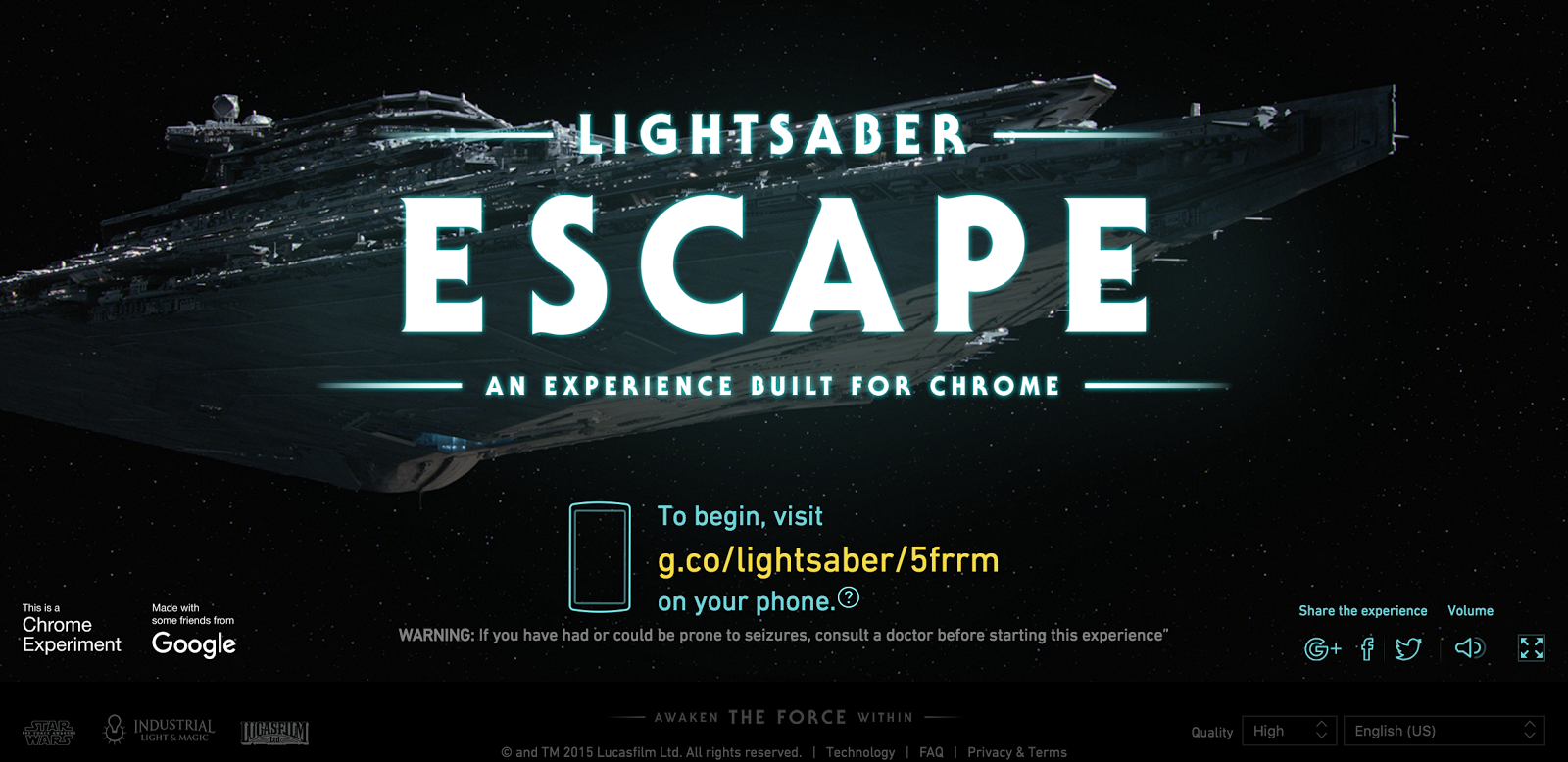
Ok so this is just pretty cool - turn your smartphone into a Star Wars Light Saber.  You will need a computer with the Chrome web browser & your smart phone with the chrome web browser as well.  Navigate on your computer to the link above or go to:lightsaber.withgoogle.com
it will give you instructions for using chrome on your phone with a code to enter.  You have to train your phone for a couple of minutes then you go on a mission - light saber in hand.


Thursday, March 24, 2016

Google Plus (Social Network for Business)

Google Plus
Social Network from Google


As you all know, social networking is a big part of the online community. What better way to provide you with an ideal social network for business than Google. Google Plus (Google+) allows you to utilize features such as Circles, Hangouts and much more!


Click on the link below to start your Google Plus account today!


Google+ 
Homepage


Friday, March 18, 2016

Google Paloooza

   Interested in enhancing your knowledge and use of Google for Education ?
Then check out the google training and certification center. It is perfect for learning how to use every aspect of your Google tools from Docs to Classroom and well beyond. 
From Beginner to expert you can check out modules at your own pace, test yourself and practice learning skills. If you're more serious you may become a Google Certified Educator or even Trainer. Whatever your goals this is absolutely the resource for you. Watch the video below to catch a glimpse. 

Here is the magic link !!!!  Enjoy !!!  Tell your fellow workers and educators.
When you learn we all learn. And that is what we are all about !!!!


Monday, February 29, 2016

Post # 22 - Write About

Write About is a supplement to the R9 Ed Talk Blog Post Becca Ferguson recently posted.  In her post she references building stamina and using writing prompts.  This resource gives you the ability to come up with writing prompts for your students, give them an audience to read their work.  It allows you as a teacher to provide electronic feedback.

Go sign up for you free account today.


Friday, February 19, 2016

Post # 21 Duolingo and Codehs

Duolingo is a free online foreign language learning tool - available as a free app on IOS and Android or web based on your computer.  Setup your free account today.


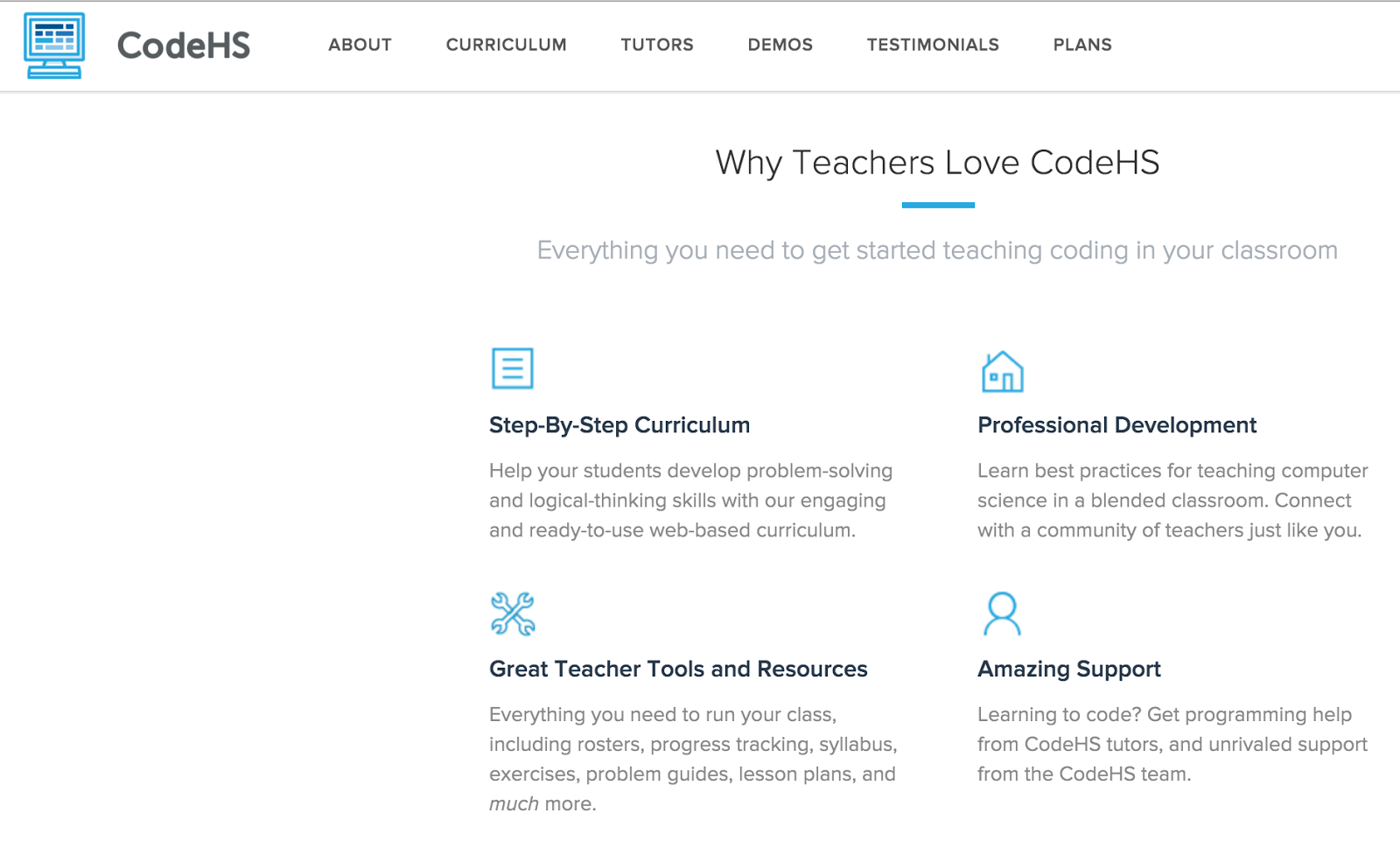
Codehs is a nice online course tool that provides several classess with the curriculum already built.  Each course is complete with working examples and immediate feedback provided to the student.  They also have a Teaching CS professional development class for any teacher that provides the ability to teach a Computer Science class without any prior Computer Science knowledge.
Join today and start the Computer Science or introduction to SQL course.  I have started the SQL course which is proving to be both challenging and fun.

  • Courses Currently Available
    • Introduction to Computer Science
    • Teaching Intro to Computer Science
    • Introduction to SQL
    • AP Computer Science in Java


Monday, February 8, 2016

Post #20 - EMaze (online presentation tool) & Formative (another great assessment tool)


Try a new online presentation tool.
Tired of the same old Powerpoint & Prezi presentations.  Put some new life into your presentations and engage your students with a new format!

PowerPoint animations vs emaze

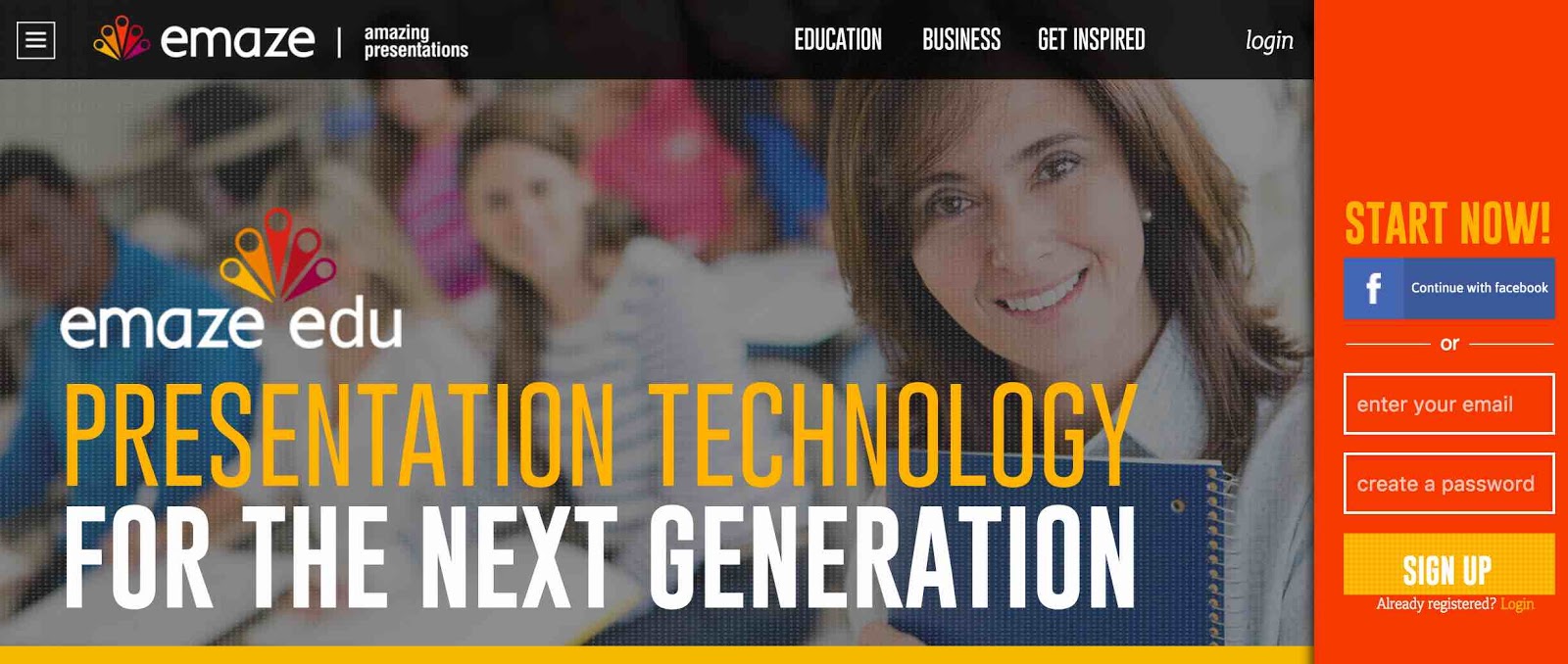
PowerPoint animations are very basic. A clip art type of image with jerky or slow movements is usually the norm. Today, however, things have changed. Emaze’s internet-based presentation platform is the most advanced tool available to create animated presentations. With emaze, implementing animated backgrounds (like the PowerPoint backgrounds you were used to) into a presentation is simple, and anyone can integrate 3D effects, video, sound, and much more into their presentations now. When compared to PowerPoint’s limited capabilities, there’s really no question which one is more effective. Emaze is the tool for presentation creation. 


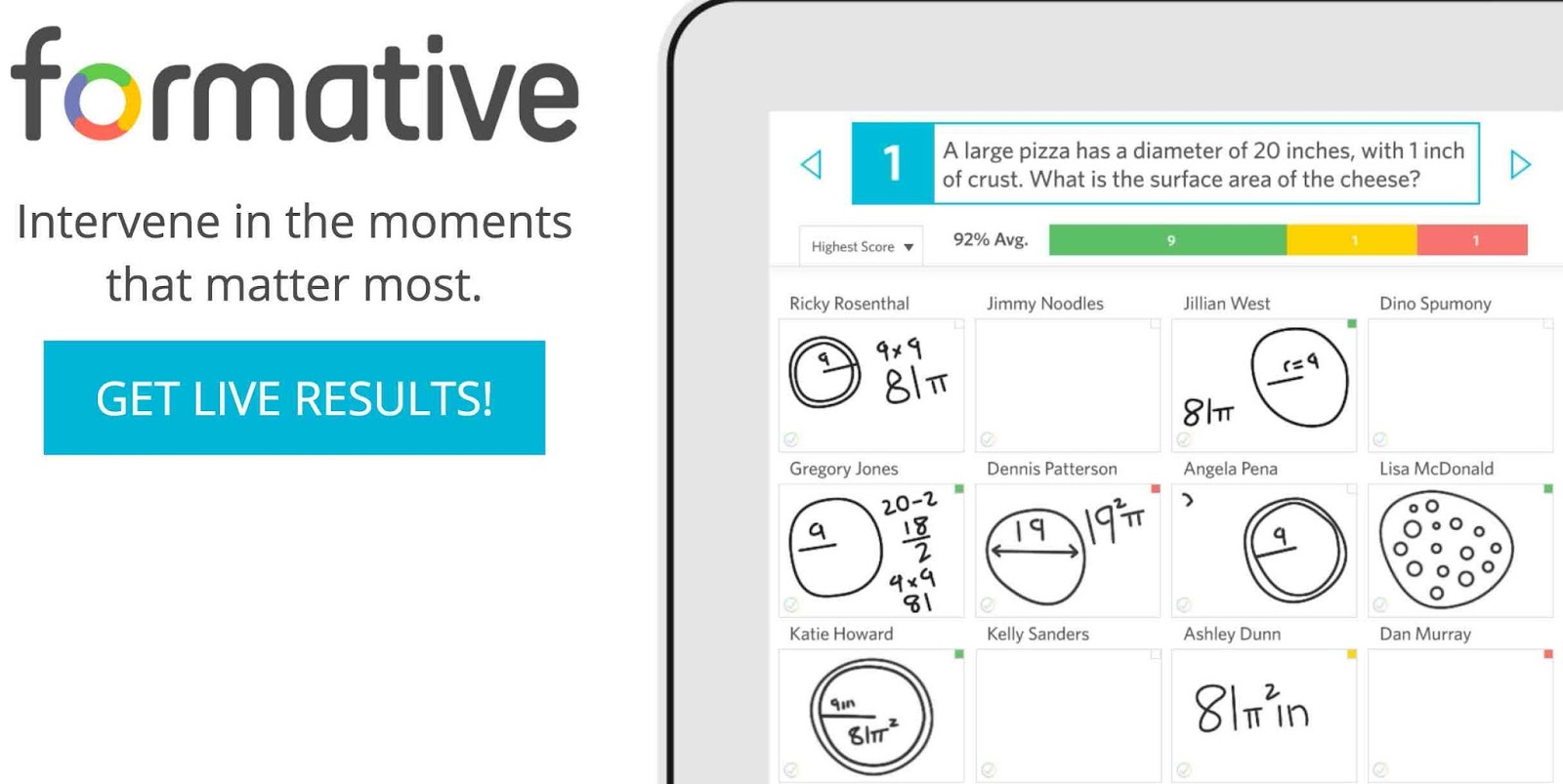
Here is another great option for teachers to assess their students using any technology platform they would like.  Formative gives you the ability to create multiple choice, true false, show your work, and short answer questions. Click here to go to Formative

How it works:  
Create an assignment -Assign it to students - Receive Live Results - Provide Feedback.

Here's what a High School Math Teacher has to say.


Monday, December 7, 2015

Post #18 - Versal - GoNoodle - Guided Access on iPad

I found this site on a podcast I have recommended before: Cult of Pedagogy it's a great resource for any teacher to easily create engaging interactive lessons for students.
The site is Versal access it here.  I would suggest creating a free teacher account and getting started today.


Great tool for keeping your kids focused and healthy in class!
http://blog.gonoodle.com/

GoNoodle - enjoy a creative break.


IPads in your classroom?
Trying to keep your kids constrained to the project at hand?
To use "Guided Access"
Go to Settings, select General then choose Accessibility then Guided Access.  Turn Guided Access on, set a passcode that controls the use of Guided Access and prevents someone from leaving an active session.  Choose if you want to allow the device to sleep while in guided access.  Once you have configured guided access, you can start a session by opening the app you want to use, then triple click the home button, choose the settings you want then tap start
Open the app you want to use.  To exit the session triple tap the home button and enter password you configured.
See the video below

#19 - Google Keep & You Tube Playlists

If you like sticky notes, you will love Google Keep.  Keep your to do lists, appointments and reminders synchronized from your computer to your phone.
Check out the quick "how to video"


If you're teaching classes and want to have your students use You Tube videos you should take advantage of a feature called Playlists.  You can preview videos and create a playlist that has several appropriate videos.  You can share your playlists with your students via several methods like, Google Classroom, Google Slides or by embedding in a web page.
Watch a short video on how to create a google playlist.

Monday, November 30, 2015

Post #17 - Diigo / Bloomz & a Tip on how to Integrate the writing process in your classroom

Bloomz

Free Parent communication tool.

What is Bloomz?

Bloomz is the easy to use, secure app that connects parents, teachers, and school administrators to build stronger communities around children.  Bloomz helps teachers save time in their communication with Parents.  Parents stay engaged with their school community, and on top of their child's world.  And, schools can deeply connect and coordinate with their community, effectively increasing engagement, satisfaction and retention.

Take a look at Bloomz Overview Video:


DIIGO
Free online bookmark tool to help you access your favorite bookmarks and sites wherever you are on any computer or device.
Excellent tool that is easy to use.  


From Cult of Pedagogy here are 7 great tools for supporting student writing in any content area.  source:  http://www.cultofpedagogy.com/pod/


Tuesday, May 12, 2015

Post #15 - Reflections for summer and preparation for 2015 School Year

Congratulations on another successful school year!  Kudos to those of you that took advantage of any technology tips or tricks we shared this year.

3 - 30's on digital trends in the classroom:  I found this interesting and found myself comparing what we have promoted this year and think its valuable to guide what we investigate for next year.  If you have the time take a look and use the information to guide your summer pursuits of technology self enhancement.  Here's the original article:  

Trending Up
  1. Teacherpreneurs
  2. Decentralizing academic standards
  3. Rethinking data in the classroom
  4. Adaptive learning algorithms
  5. Digital Citizenship
  6. Focus on non-fiction, digital media
  7. Depth of content
  8. Experimentation with new learning models (including flipped classroom, sync learning, blended learning, etc.)
  9. Teacher self-directed PD, webinars, streams, etc.
  10. College as a choice
  11. Collaborative learning
  12. Digital Literacy
  13. Focus on learning spaces
  14. Design thinking
  15. Mindfulness, meditation, downtime
  16. Teacher as guide-on-the-side
  17. Gamification of content
  18. Genius hour, maker hour, collaboration time
  19. Workflows
  20. Cloud-based word processing
  21. Mainstreaming + co-teaching
  22. Platform Agnosticism
  23. Librarian as digital media specialist
  24. YouTube channels, Google Chromecast, AppleTV
  25. Apps like Storehouse
  26. 1:1 tablets/devices
  27. Project-Based Learning
  28. Mobile-first #edtech design
  29. The innovation of apps
  30. Microsoft OneDrive, Google Drive
Awkward Middle Ground
  1. Google, Microsoft, Apple, etc.
  2. “Accountability”
  3. Professional Learning Communities
  4. Differentiation
  5. Computer coding
  6. Traditional reading lists of truly great literature
  7. Pure creativity
  8. Self-directed learning
  9. Massive in-person education conferences
  10. Colleges in general
  11. Experiential learning
  12. Cultural Literacy
  13. The physical design of most school buildings and universities
  14. Memorization of prioritized content that leads to design thinking
  15. Debate
  16. Pressure on systems
  17. Gamification-as-grading-system
  18. Tutoring
  19. To-do lists
  20. Cloud-based learning
  21. One teach, one drift/prompt/observe
  22. Moving from one OS to another (e.g., from Android to Windows Phone)
  23. Librarian/DMS as bibliophile
  24. Online encyclopedias
  25. Apps like Prezi
  26. Socioeconomic disparity
  27. Mobile learning
  28. Mobile assessment
  29. Honest-to-goodness free apps
  30. iCloud
Trending Down
  1. Mass education publishers
  2. Common Core standards, Race to the Top
  3. Data Teams
  4. Scripted curricula
  5. Draconian district filters
  6. Humanities
  7. Coverage of content
  8. “21st century learning” as a phrase or single idea
  9. The perceived quality of teacher certification & training programs
  10. College as the standard
  11. MOOCs
  12. Agricultural Literacy
  13. The traditional classroom
  14. “Low-level” recall of easily accessed data (facts) or skills (arithmetic)
  15. Lessons that favor “verbally expressive” students
  16. Pressure on teachers
  17. Standards-based grading; pass/fail; student retention
  18. Increased “instructional hours”
  19. Whole class processes
  20. Flash drives, hard drives, CDs, emailing files
  21. Alternative schools/classrooms for special needs students
  22. Apple-centric thinking
  23. Librarian as no-nonsense, ruler-wielding taskmaster
  24. Cable television, subscription-based content streaming
  25. Apps like PowerPoint
  26. Oversimplifying BYOD thinking
  27. “Doing projects”
  28. Mobilizing non-mobile content
  29. In-app purchase gouging
  30. Dropbox
Heres a great link to an article I recently read regarding digital citizenship and addressing it the first 5 days of your school year in 2015.  Here's a teaser from the top of the article.


This article was originally published on Edudemic on August 19th.  Click here for the whole article:
Digital citizenship is not a one time discussion. It is an ongoing process that needs to be taught to all grade levels and to all stakeholders. The problem is that things are changing so rapidly that it is difficult for everyone to keep up to date with the trends.  Everyone has to be educated and develop an understanding of the role digital citizenship plays in our everyday lives. There is so much that goes into being a digital citizen; from taking photos of others to knowing when it is appropriate to share something online.
Our students are like cowboys living in the wild wild west. Without any guidelines or structure they can get in a lot of trouble. Armed with a concrete plan for teaching about appropriate use you can guide your students to become better digital citizens, who will learn how to build their digital presence in a positive and productive way.
If you have any success stories from the year and would like to share them, feel free to email me or comment them in the blog.