Monday, February 8, 2016

Post #20 - EMaze (online presentation tool) & Formative (another great assessment tool)


Try a new online presentation tool.
Tired of the same old Powerpoint & Prezi presentations.  Put some new life into your presentations and engage your students with a new format!

PowerPoint animations vs emaze

PowerPoint animations are very basic. A clip art type of image with jerky or slow movements is usually the norm. Today, however, things have changed. Emaze’s internet-based presentation platform is the most advanced tool available to create animated presentations. With emaze, implementing animated backgrounds (like the PowerPoint backgrounds you were used to) into a presentation is simple, and anyone can integrate 3D effects, video, sound, and much more into their presentations now. When compared to PowerPoint’s limited capabilities, there’s really no question which one is more effective. Emaze is the tool for presentation creation. 



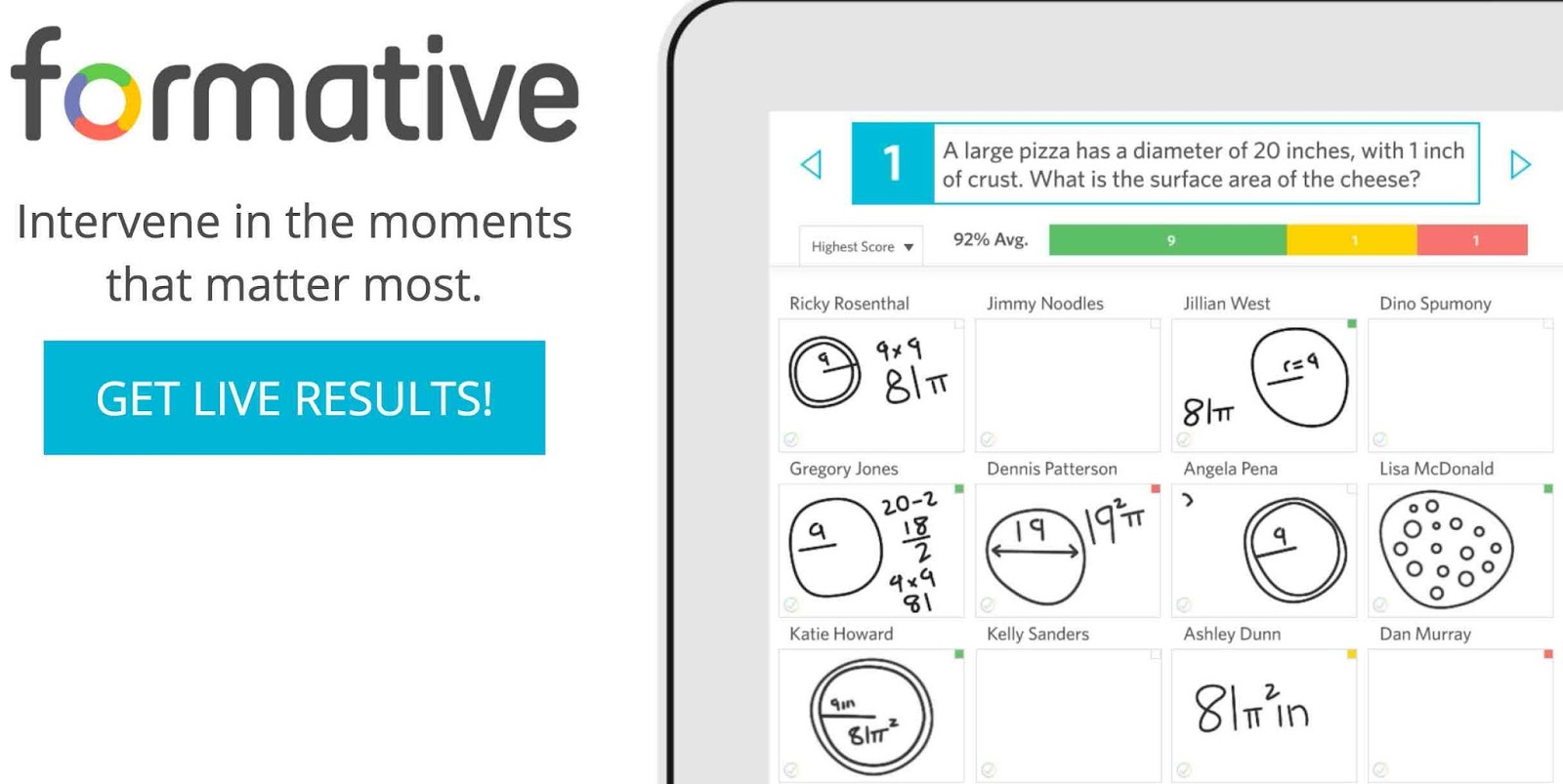
Here is another great option for teachers to assess their students using any technology platform they would like.  Formative gives you the ability to create multiple choice, true false, show your work, and short answer questions. Click here to go to Formative

How it works:  
Create an assignment -Assign it to students - Receive Live Results - Provide Feedback.

Here's what a High School Math Teacher has to say.


Monday, December 7, 2015

Post #18 - Versal - GoNoodle - Guided Access on iPad

I found this site on a podcast I have recommended before: Cult of Pedagogy it's a great resource for any teacher to easily create engaging interactive lessons for students.
The site is Versal access it here.  I would suggest creating a free teacher account and getting started today.


Great tool for keeping your kids focused and healthy in class!
http://blog.gonoodle.com/

GoNoodle - enjoy a creative break.


IPads in your classroom?
Trying to keep your kids constrained to the project at hand?
To use "Guided Access"
Go to Settings, select General then choose Accessibility then Guided Access.  Turn Guided Access on, set a passcode that controls the use of Guided Access and prevents someone from leaving an active session.  Choose if you want to allow the device to sleep while in guided access.  Once you have configured guided access, you can start a session by opening the app you want to use, then triple click the home button, choose the settings you want then tap start
Open the app you want to use.  To exit the session triple tap the home button and enter password you configured.
See the video below

#19 - Google Keep & You Tube Playlists

If you like sticky notes, you will love Google Keep.  Keep your to do lists, appointments and reminders synchronized from your computer to your phone.
Check out the quick "how to video"


If you're teaching classes and want to have your students use You Tube videos you should take advantage of a feature called Playlists.  You can preview videos and create a playlist that has several appropriate videos.  You can share your playlists with your students via several methods like, Google Classroom, Google Slides or by embedding in a web page.
Watch a short video on how to create a google playlist.

Monday, November 30, 2015

Post #17 - Diigo / Bloomz & a Tip on how to Integrate the writing process in your classroom

Bloomz

Free Parent communication tool.

What is Bloomz?

Bloomz is the easy to use, secure app that connects parents, teachers, and school administrators to build stronger communities around children.  Bloomz helps teachers save time in their communication with Parents.  Parents stay engaged with their school community, and on top of their child's world.  And, schools can deeply connect and coordinate with their community, effectively increasing engagement, satisfaction and retention.

Take a look at Bloomz Overview Video:


DIIGO
Free online bookmark tool to help you access your favorite bookmarks and sites wherever you are on any computer or device.
Excellent tool that is easy to use.  


From Cult of Pedagogy here are 7 great tools for supporting student writing in any content area.  source:  http://www.cultofpedagogy.com/pod/